Two apps. Android and iOS.
The crew app puts the day’s work in every employee’s pocket and keeps working without signal. The Customer Portal app gives your customers what you chose to share, and nothing else.
Works on Android and iOS
Crew app
For employees and admins. Tasks, punches, materials and stock counts are saved on the phone and sync when the connection comes back. Each tab shows up only for people with permission to use it, and crew see their own My Hours: what was logged, approved and paid.
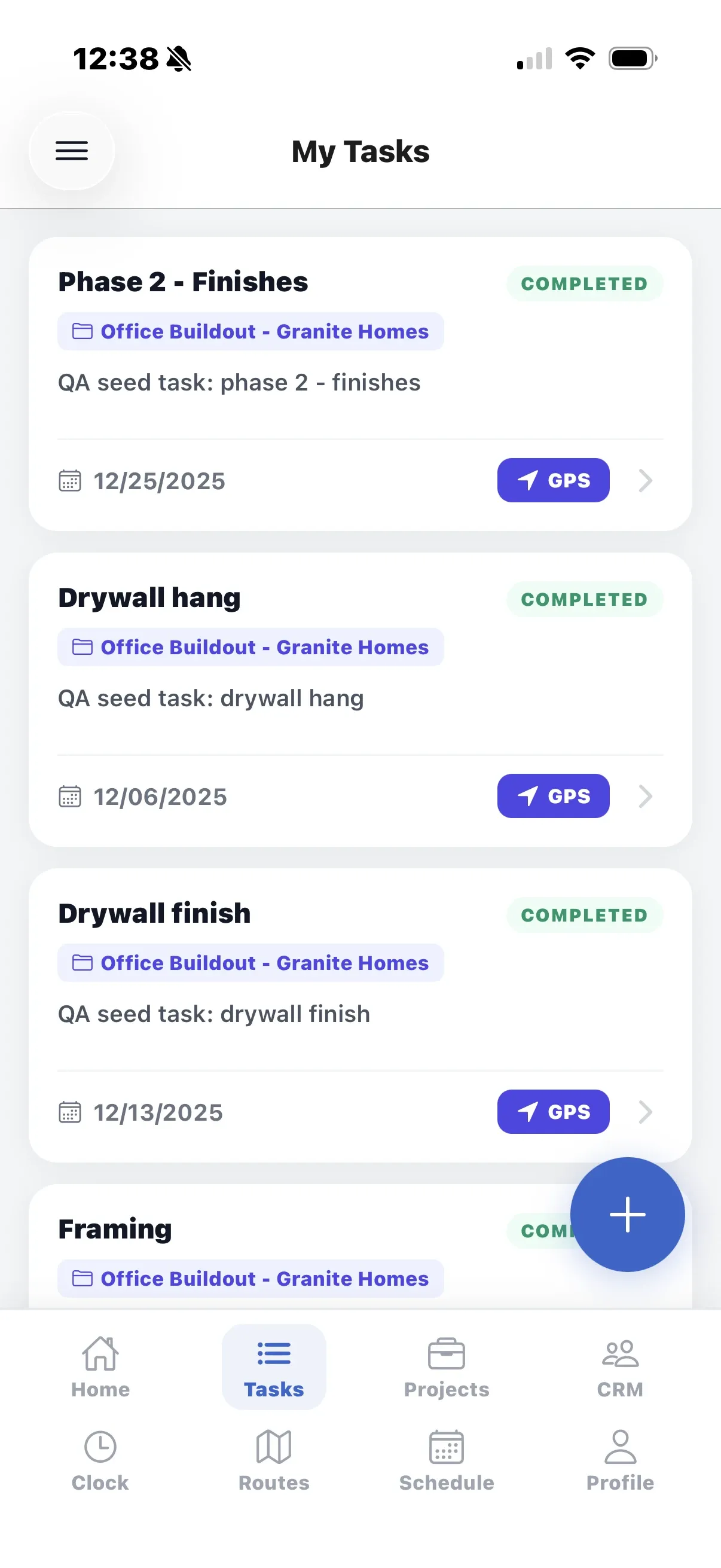
My Tasks
The day’s tasks with project and deadline. Open the jobsite in your maps app, mark work done, and add a task when you have the permission.
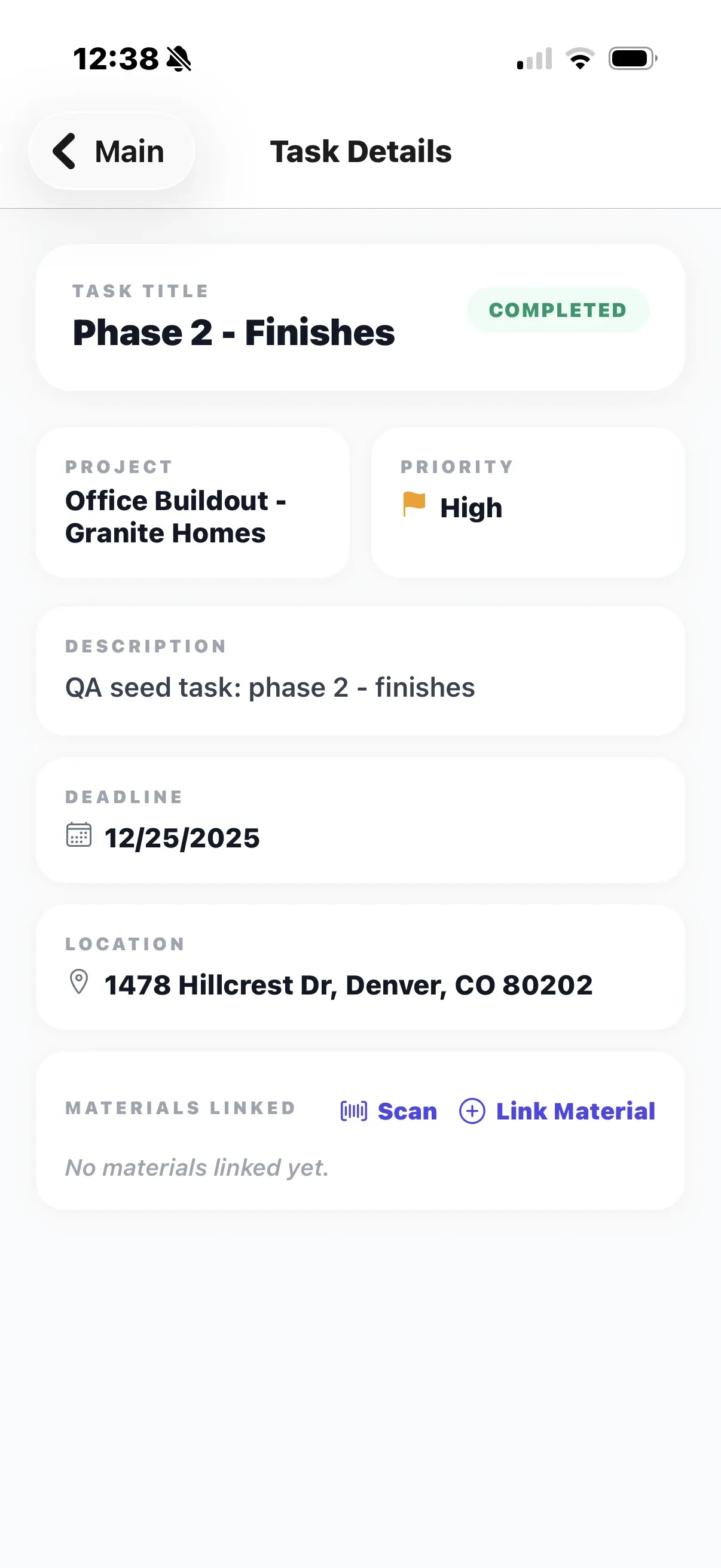
Task details
Deadline, priority, project and jobsite on one screen. Clock in against the task, add photos from the camera, and link the materials you used, by search or barcode scan.
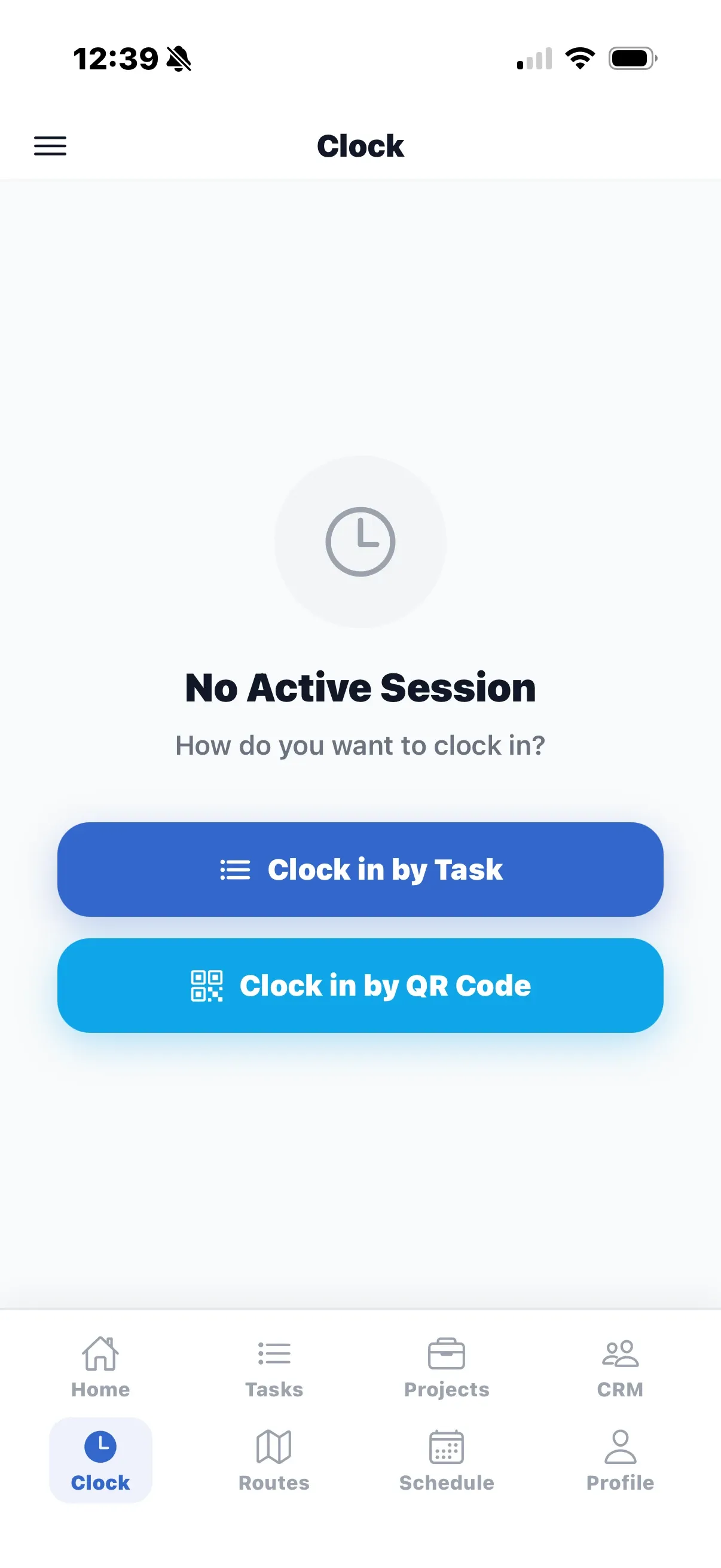
Clock
Clock in by task, or point the camera at the jobsite QR poster: it clocks you in, or out if you are already in, and the server checks the location when the phone is online. Optional photo at clock-out. Punches are saved on the phone and sync later.
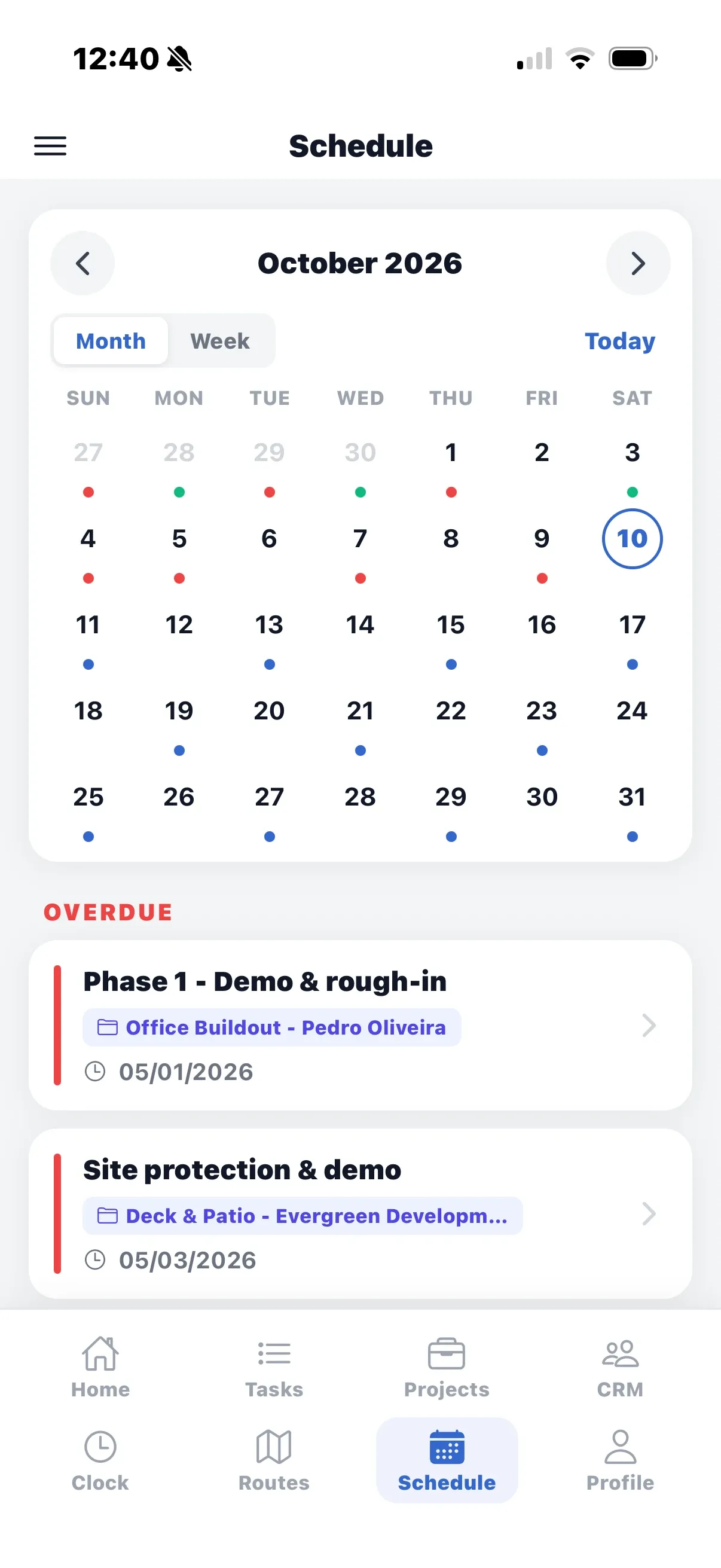
Schedule
A month or week calendar of your tasks with Today, Tomorrow and Overdue, built from the tasks already on the phone, so it works without signal.
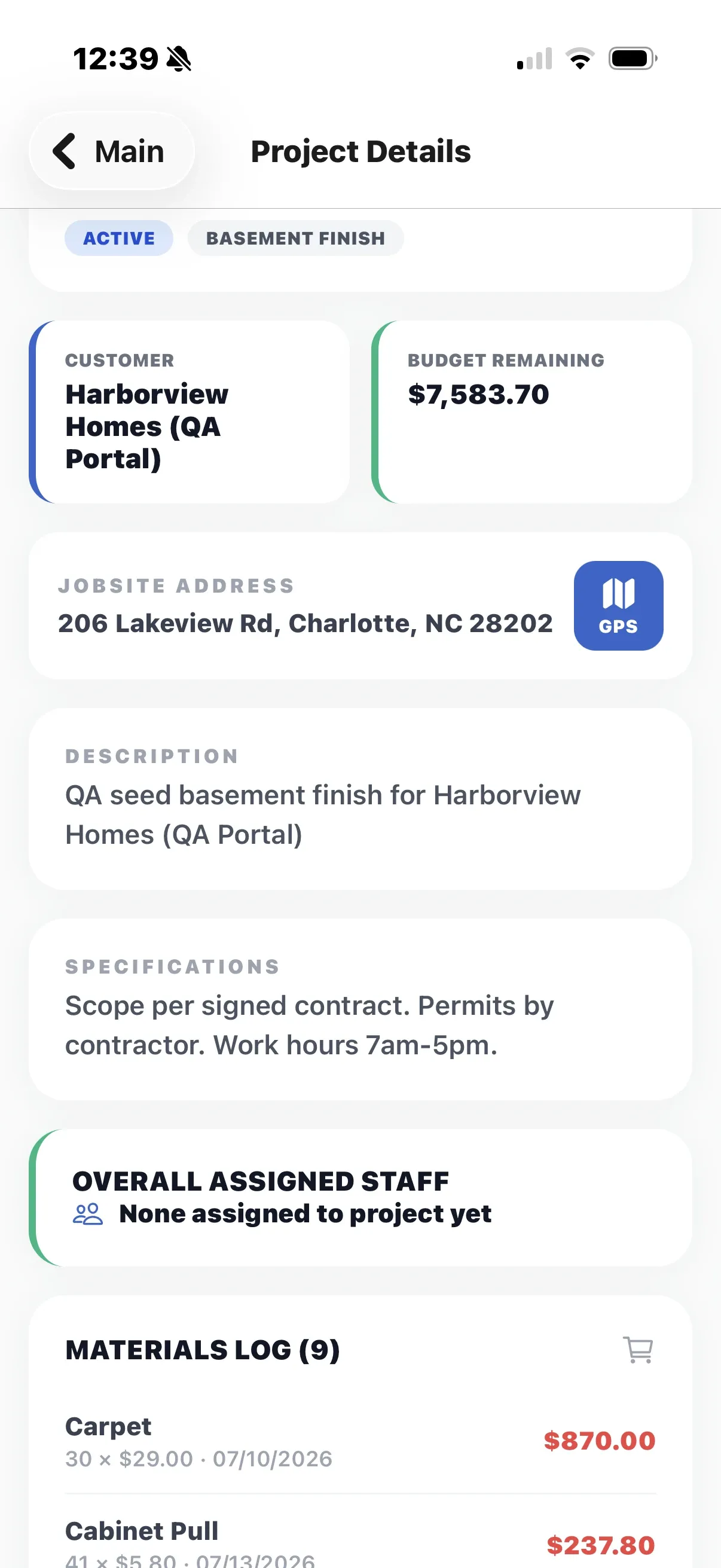
Projects
Status, customer, budget remaining, assigned staff, tasks, photos, files, punch list and the materials log of each project. Admins can create a project on site.
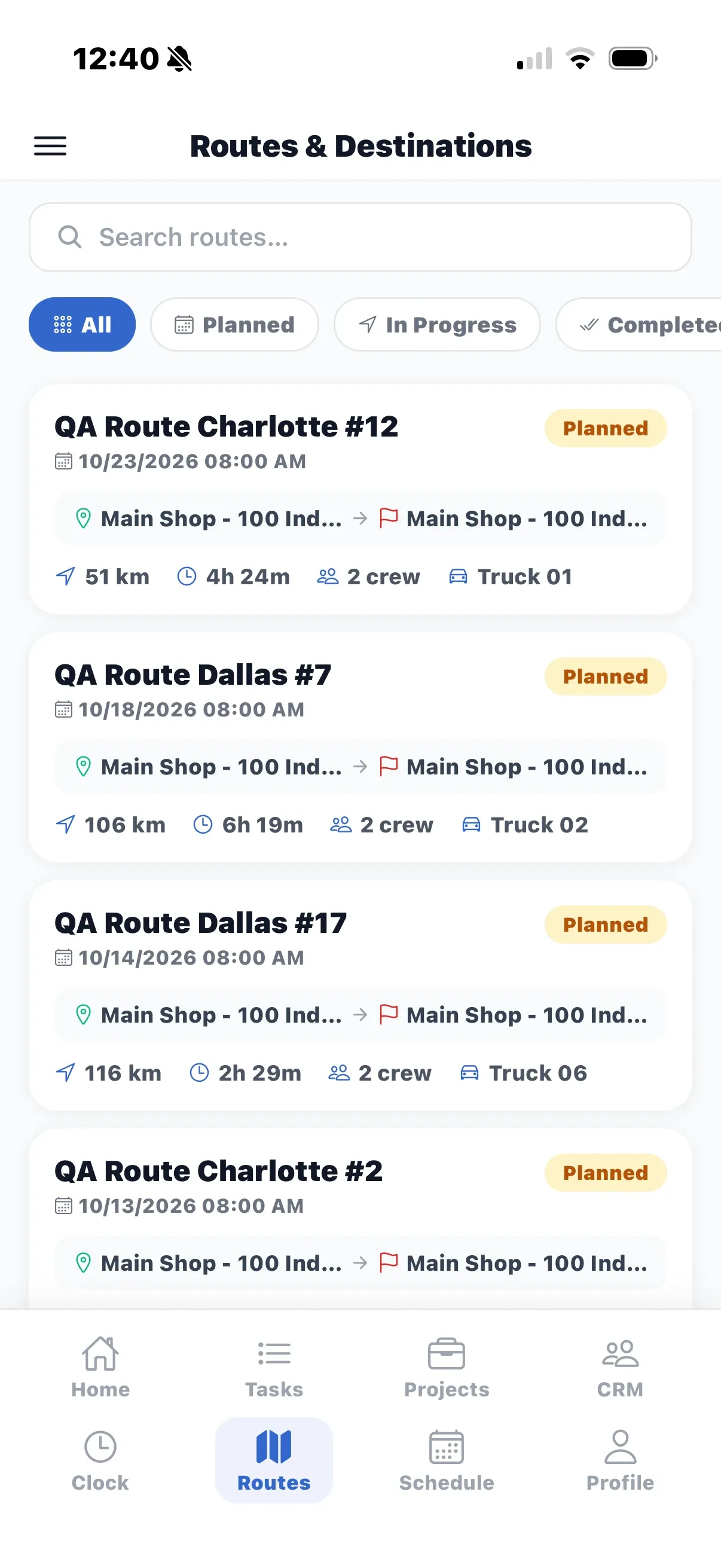
Routes
Your crew’s routes with their stops, distance, duration, crew and truck. Part of the Pro plan.
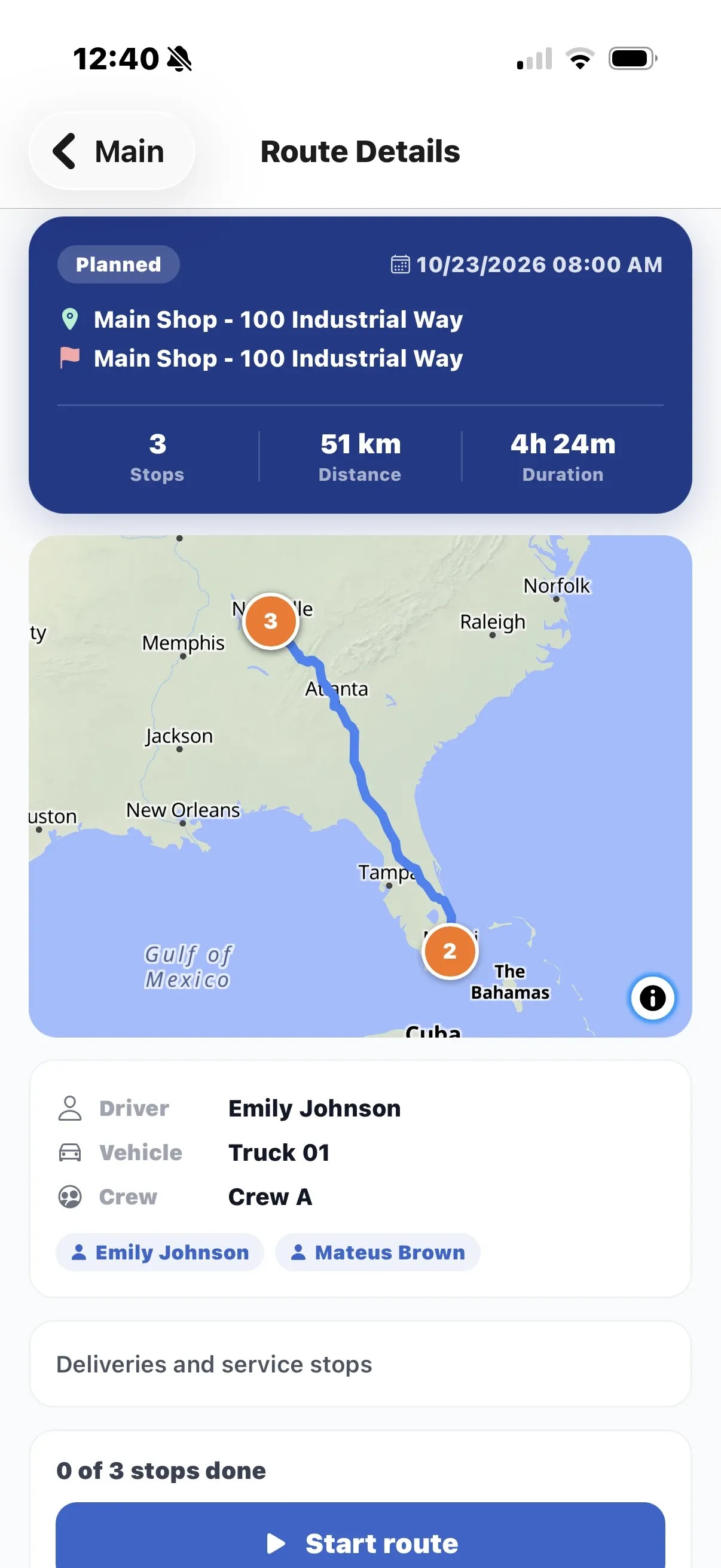
Route details
The road path on a map. Start the route, complete or skip each stop with a comment and photos, and finish it to log the crew’s hours.
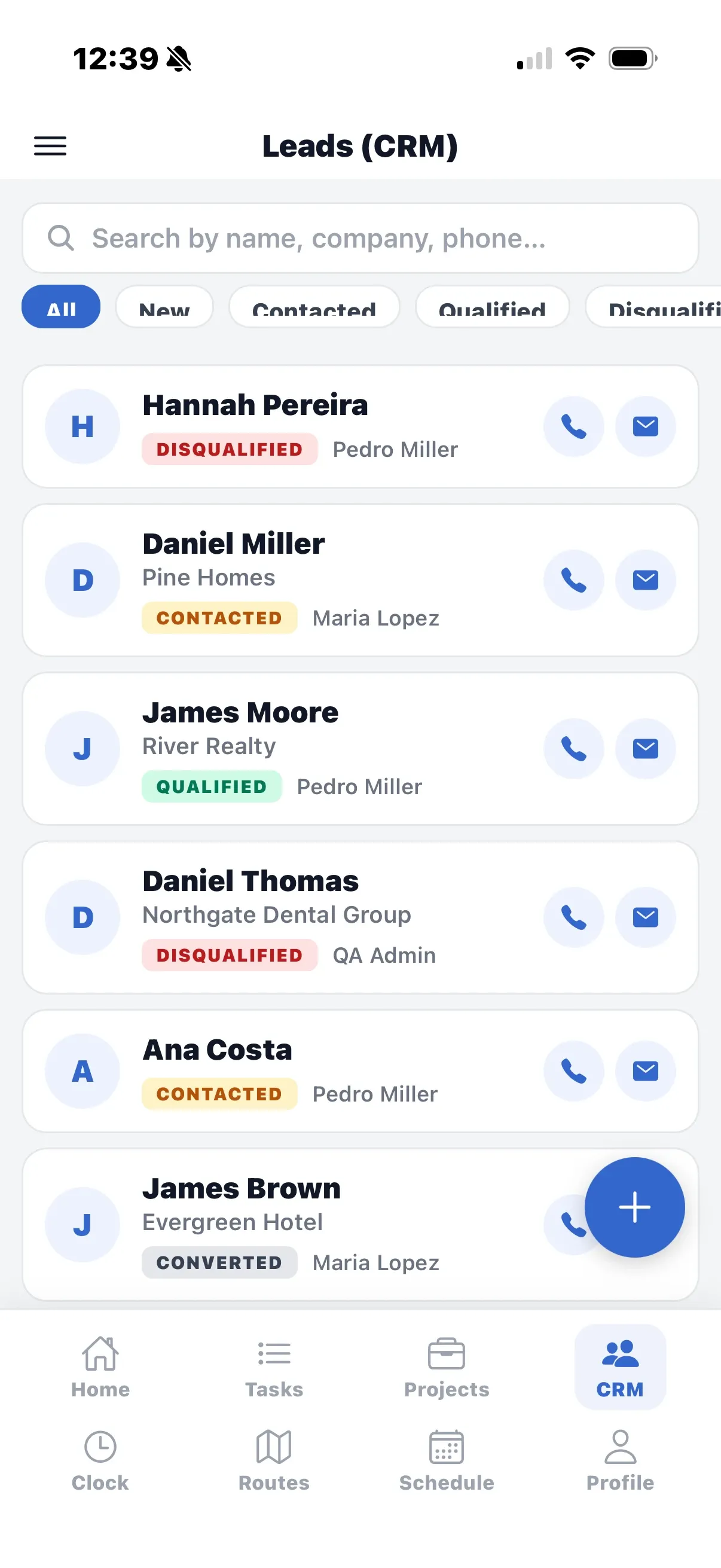
CRM leads
Search and filter leads by status, call or email with one tap, add a lead, log activities and notes, take photos and share the lead as a PDF.
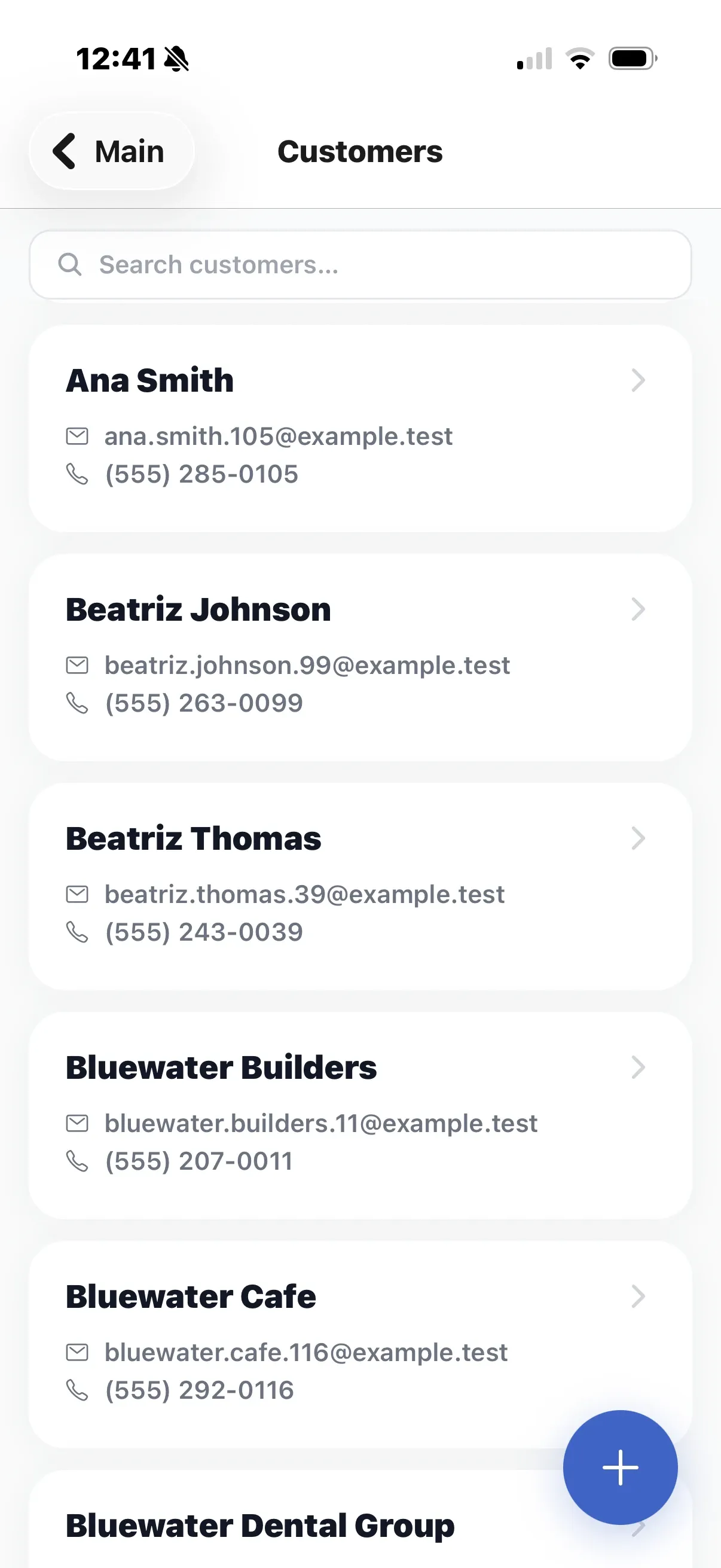
Customers
Search, add and open customers: call, email, navigate to any of their addresses, read the notes and jump to their projects.
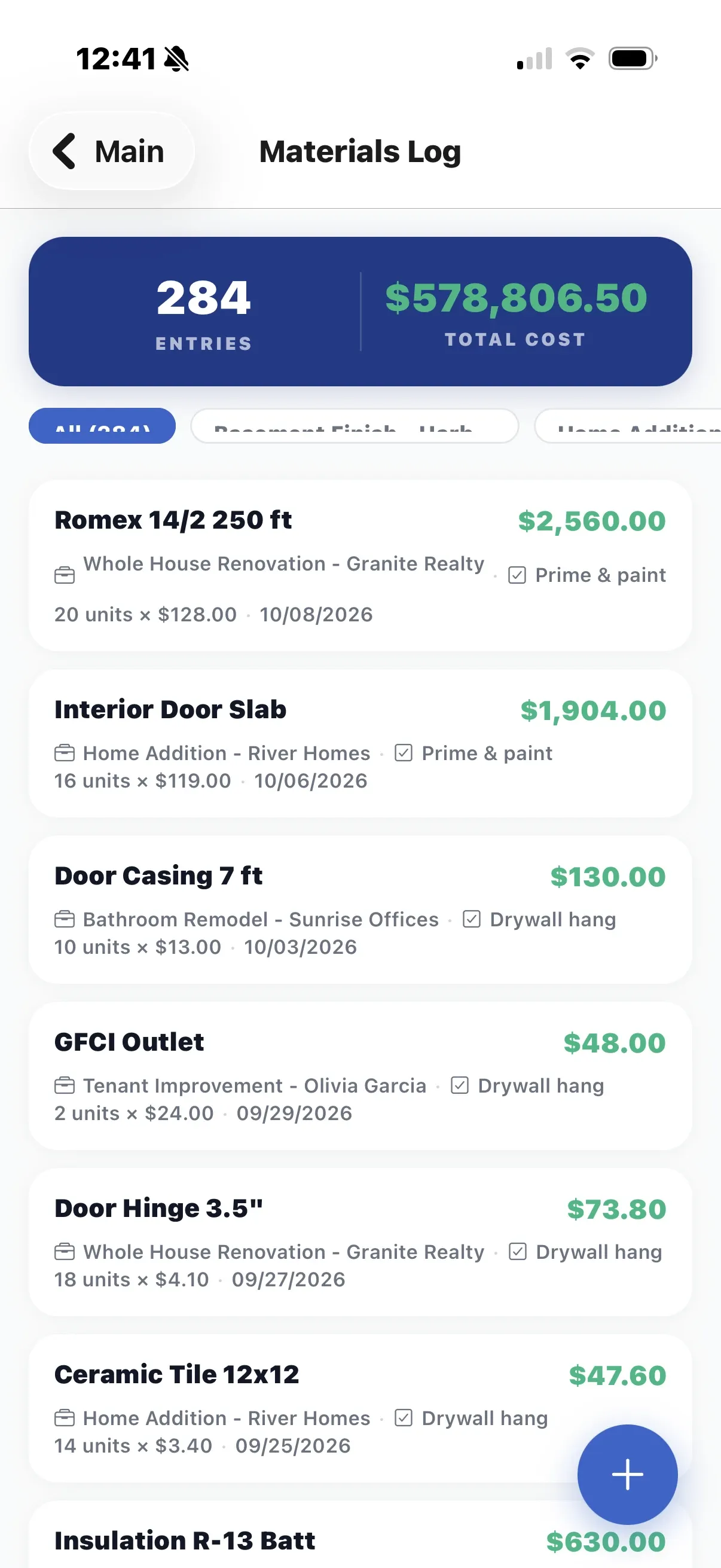
Materials log
Every material used, by project and task, with quantity, unit price and totals. Scan barcodes to pick items, and count stock at a location by scanning its labels.
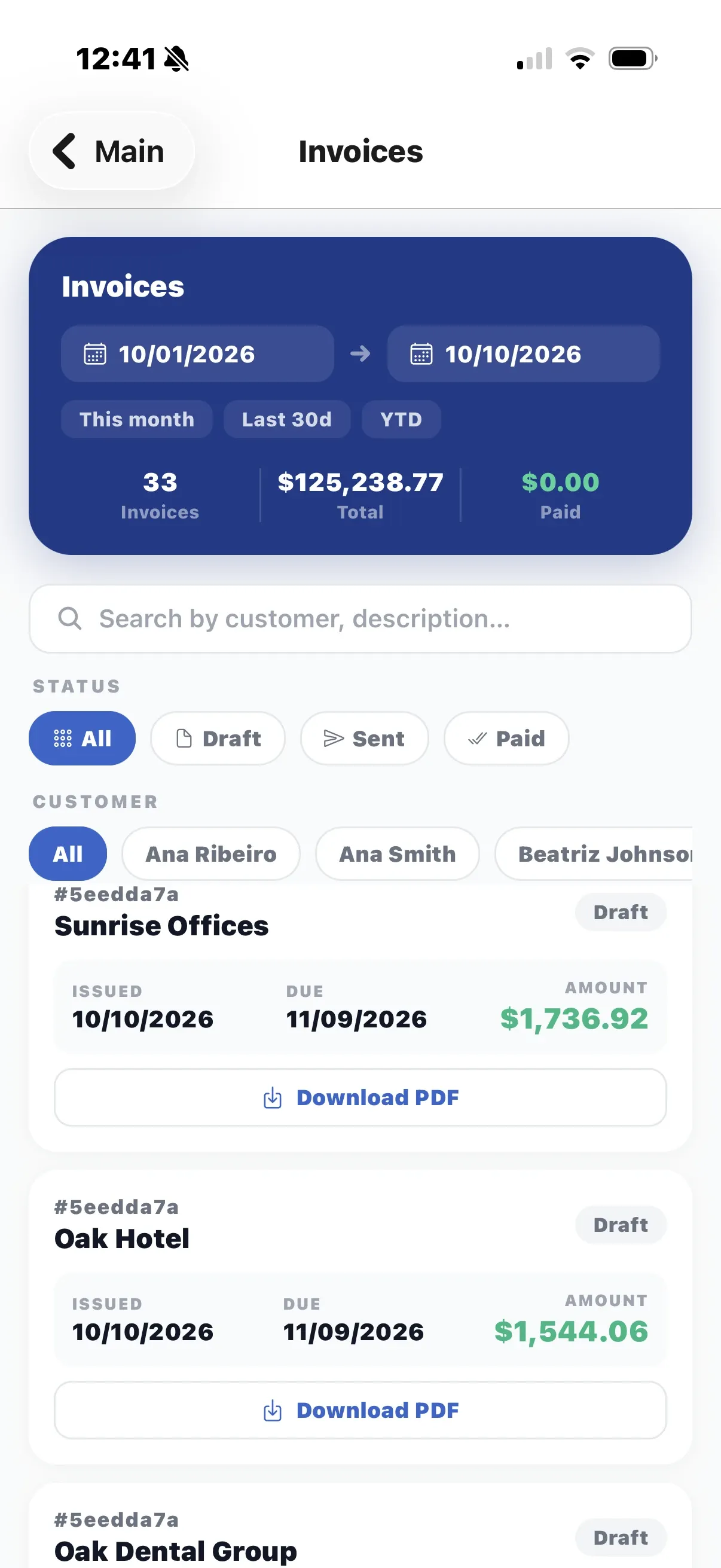
Invoices
Search invoices by customer, filter by status and period, see the totals and download any invoice as a PDF.
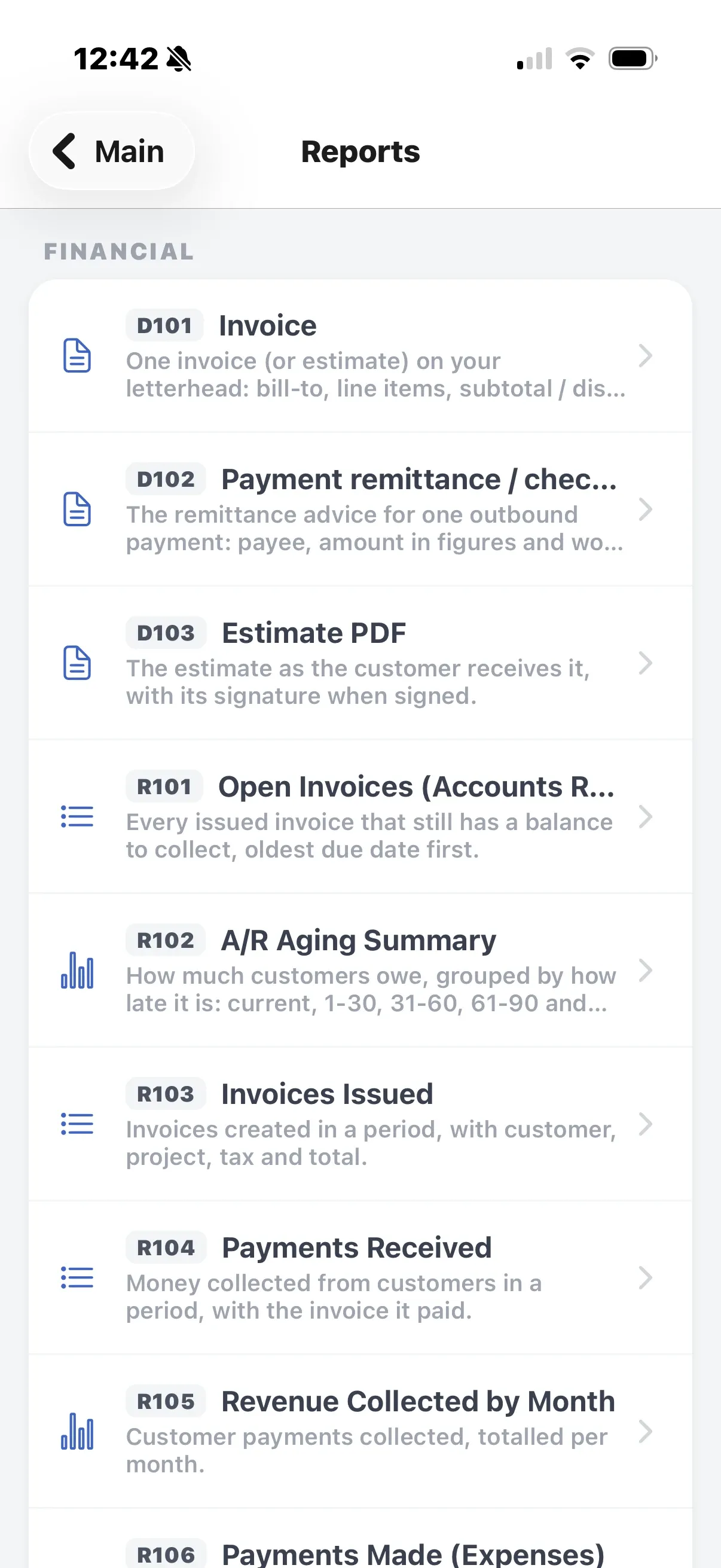
Reports
Run the standard reports from your phone with the same filters as the web app, then view the result or share it as a PDF.
Customer Portal app · Add-on
For your customers. They follow their projects, approve change orders and sign contracts from the phone, in English, Spanish or Portuguese. They only ever see the projects you shared.
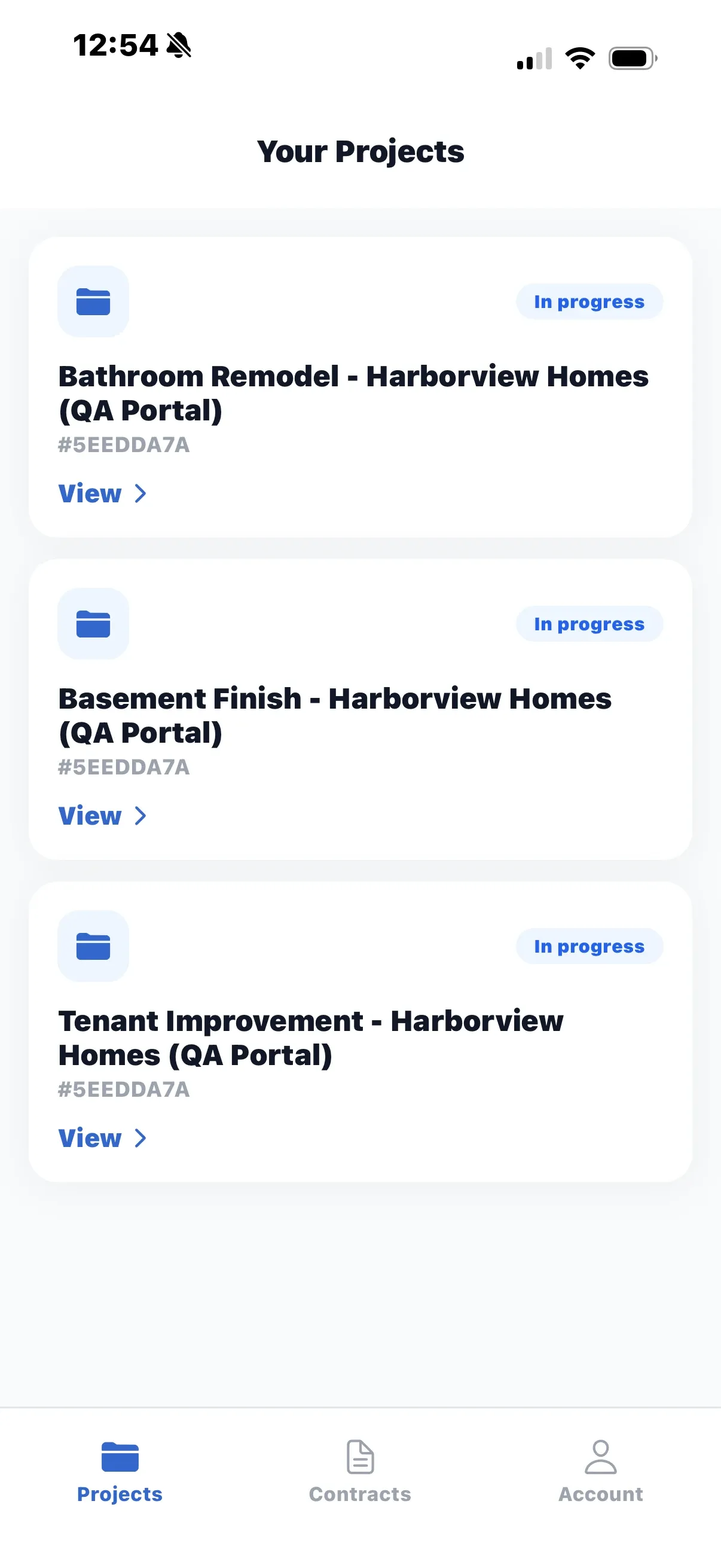
Your projects
Only the projects you shared, each with an overview: scope of work, address, start date, estimated completion, status and who to contact at your company.
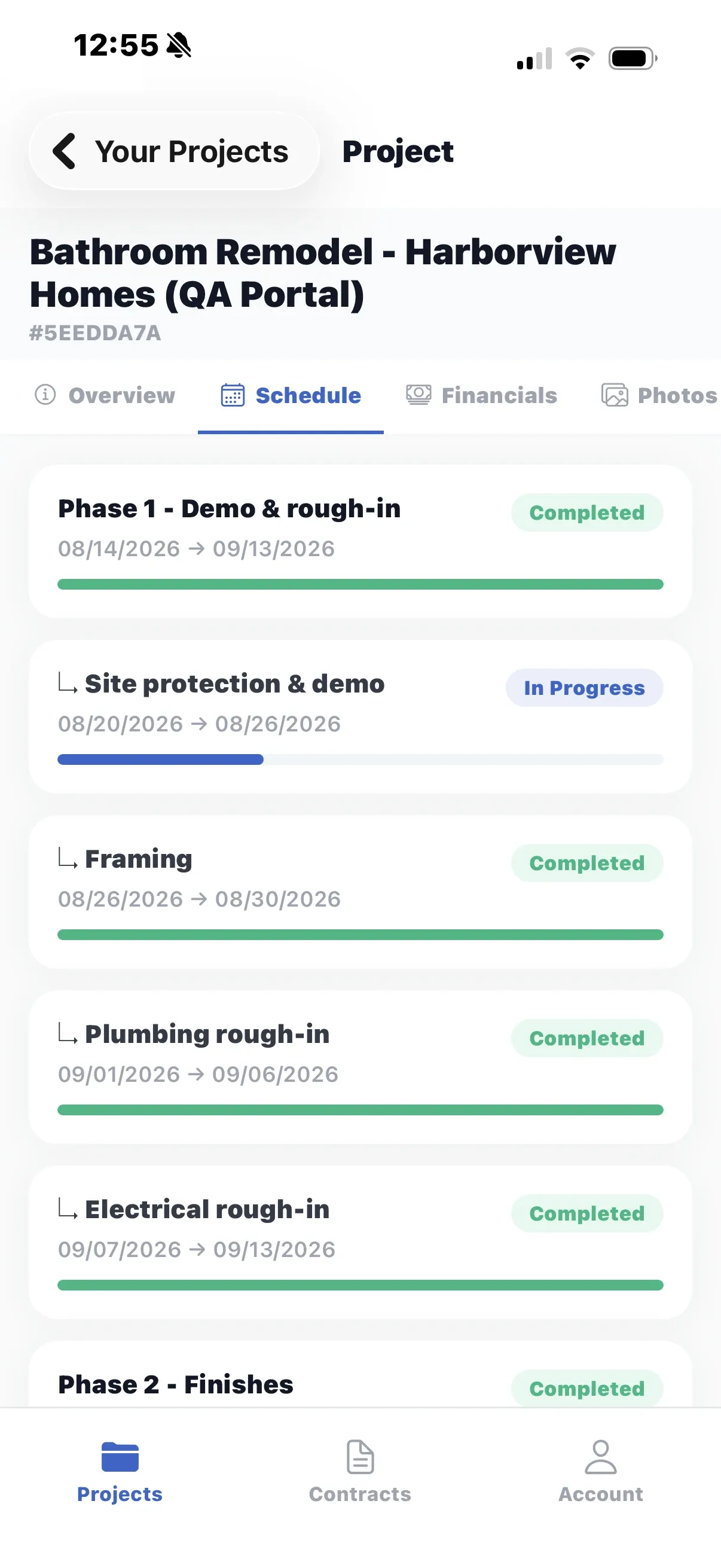
Schedule
Phases and their progress, with the delay reason and the new completion date when one changes. Financials, photos, notes and files appear when you switch them on for the project.
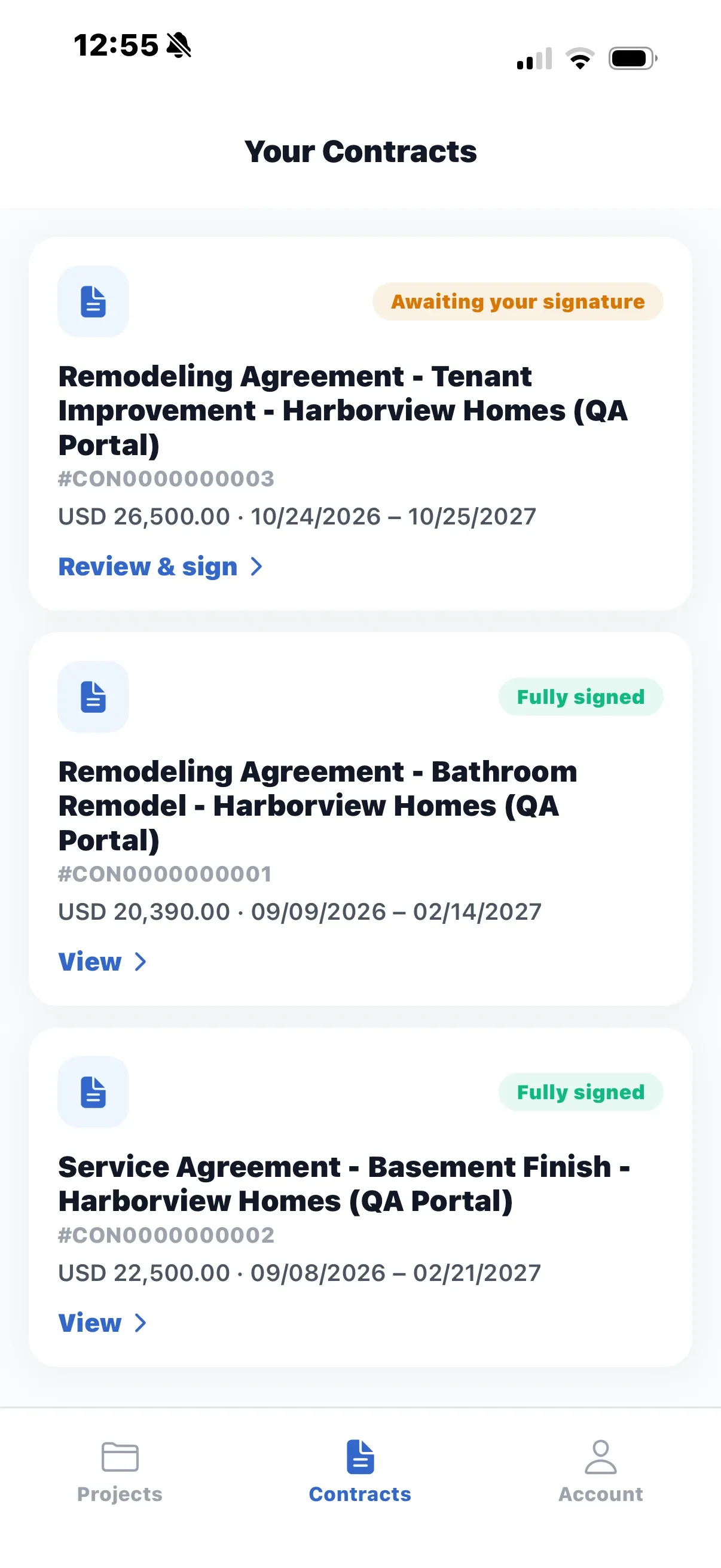
Contracts
Every contract with its status, from awaiting your signature to fully signed, and a PDF to download.
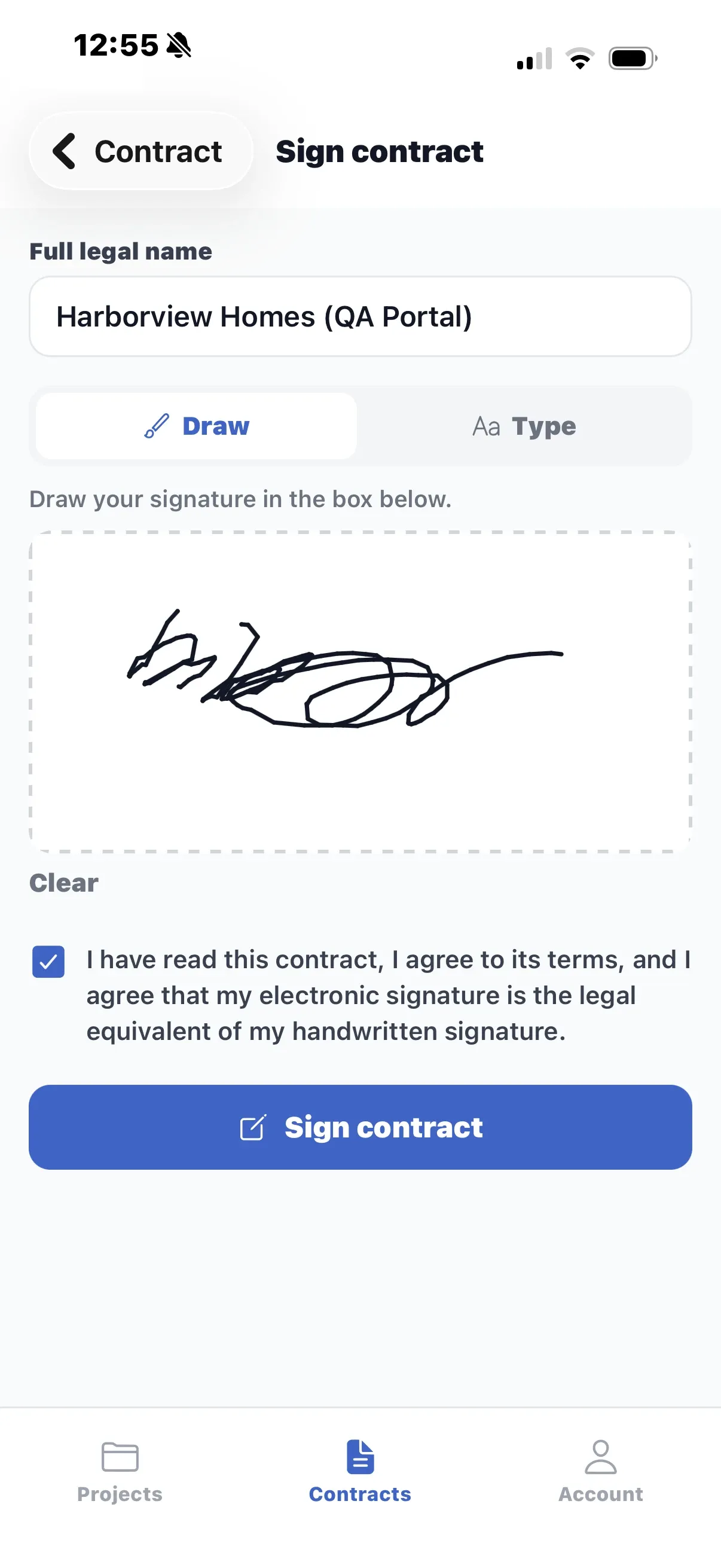
Sign on the phone
Review the contract and sign it, drawn with a finger or typed. Your company countersigns and the signed copy arrives by email.
See your jobs, crews and cash in one place.
Get started on Plus or Pro with a 30-day money-back guarantee, or book a demo first and we will walk you through it.